QuickBooks Online Auto Import from Watched Folders
Automatically capture supplier invoices from scanner folders, downloads, Dropbox, OneDrive, and local folders
QuickBooks Online is where your accounting data needs to end up, but invoices usually start somewhere else.
They arrive as scanned paper invoices, downloaded supplier PDFs, email attachments, Dropbox files, OneDrive files, or documents saved by a bookkeeping team.
Scan2Invoice watched folders help bridge that gap.
Instead of manually uploading every invoice, you choose a folder on your computer and let Scan2Invoice monitor it. When a new invoice or receipt file appears, Scan2Invoice automatically imports it for OCR and data extraction. You then review the result and export the invoice data to QuickBooks Online.
Scanner / Downloads / Dropbox / OneDrive → Watched Folder → Auto Import → OCR & Extraction → Review → QuickBooks Online
This gives QuickBooks Online users a practical auto import workflow without removing the review step bookkeepers and business owners still need.
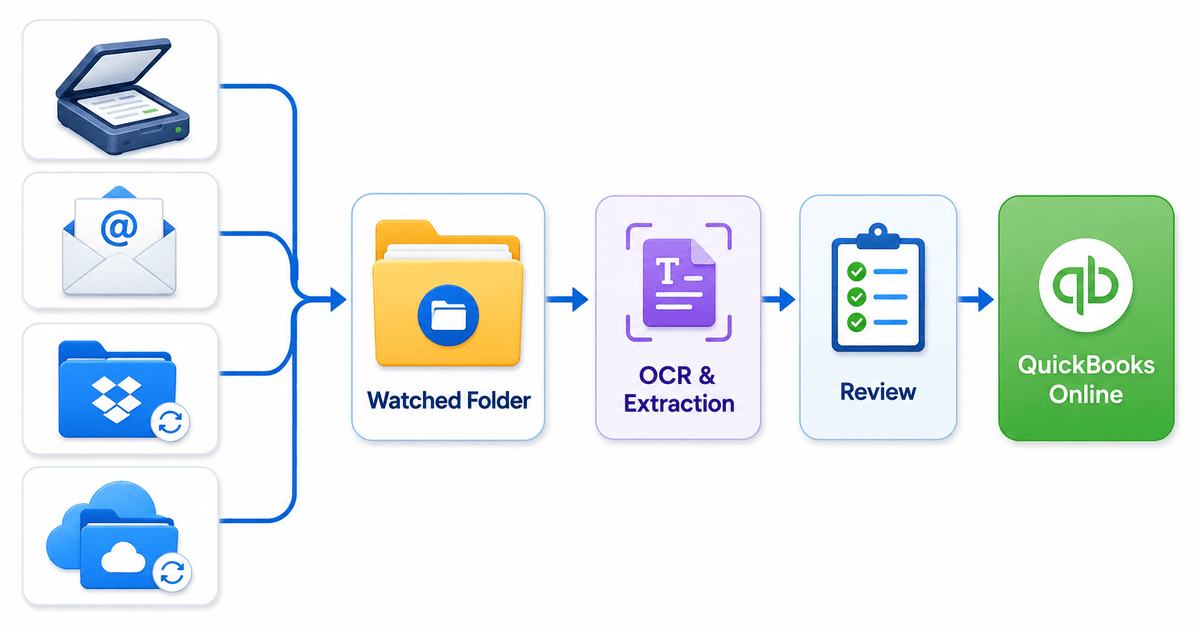 QuickBooks Online auto import from watched folders
The problem: manual invoice uploads slow down QuickBooks Online workflows
Manual uploads are manageable when you only process a few invoices.
They become repetitive when you handle supplier invoices every day or process documents for multiple clients.
A typical manual workflow looks like this:
- Download or scan the invoice
- Find the file on your computer
- Open your invoice processing software
- Upload the file manually
- Wait for OCR and extraction
- Review the extracted invoice data
- Export to QuickBooks Online
The repeated upload step adds friction.
With a watched folder, the process is simpler:
- Save or scan the invoice into the folder
- Scan2Invoice auto imports the file
- Review the extracted data
- Export to QuickBooks Online
| Manual upload | Scan2Invoice watched folder |
|---|---|
| Upload each invoice one by one | Save or scan files into one folder |
| Easy to miss downloaded PDFs | New files are detected automatically |
| Slower for batch processing | Better for batches and scanner workflows |
| Repetitive admin work | Intake is automated before review |
| Less suited to shared folders | Works with local Dropbox and OneDrive folders |
What is a watched folder?
A watched folder is a folder on your computer that Scan2Invoice monitors automatically.
When you add a supported invoice or receipt file, Scan2Invoice imports the document into the selected company and sends it through the normal OCR and extraction workflow.
Watched folders are also useful when the folder is synced from a cloud storage service, such as Dropbox or OneDrive, as long as the folder is available locally on the computer running Scan2Invoice.
Use watched folders for:
- Scanner output folders
- Supplier invoice download folders
- Local bookkeeping intake folders
- Dropbox folders synced to your computer
- OneDrive folders synced to your computer
- Client or staff invoice drop-off folders
The goal is simple: make the folder the entry point for your QuickBooks Online invoice processing workflow.
How QuickBooks Online auto import works with Scan2Invoice
Scan2Invoice is the desktop version of BillBjorn and is designed for scanning, folder monitoring, OCR, and accounting export workflows.
The QuickBooks Online auto import workflow is:
- Add invoices to a watched folder
- Scan2Invoice detects new files
- Files are imported into the selected company
- OCR reads the invoice or receipt
- AI data extraction captures supplier, invoice number, date, totals, tax, and line items
- You review the extracted data
- You export the invoice data to QuickBooks Online
Auto Import handles the document intake step. It does not post invoices to QuickBooks Online without review.
That keeps your accounting workflow controlled while removing the repetitive manual upload step.
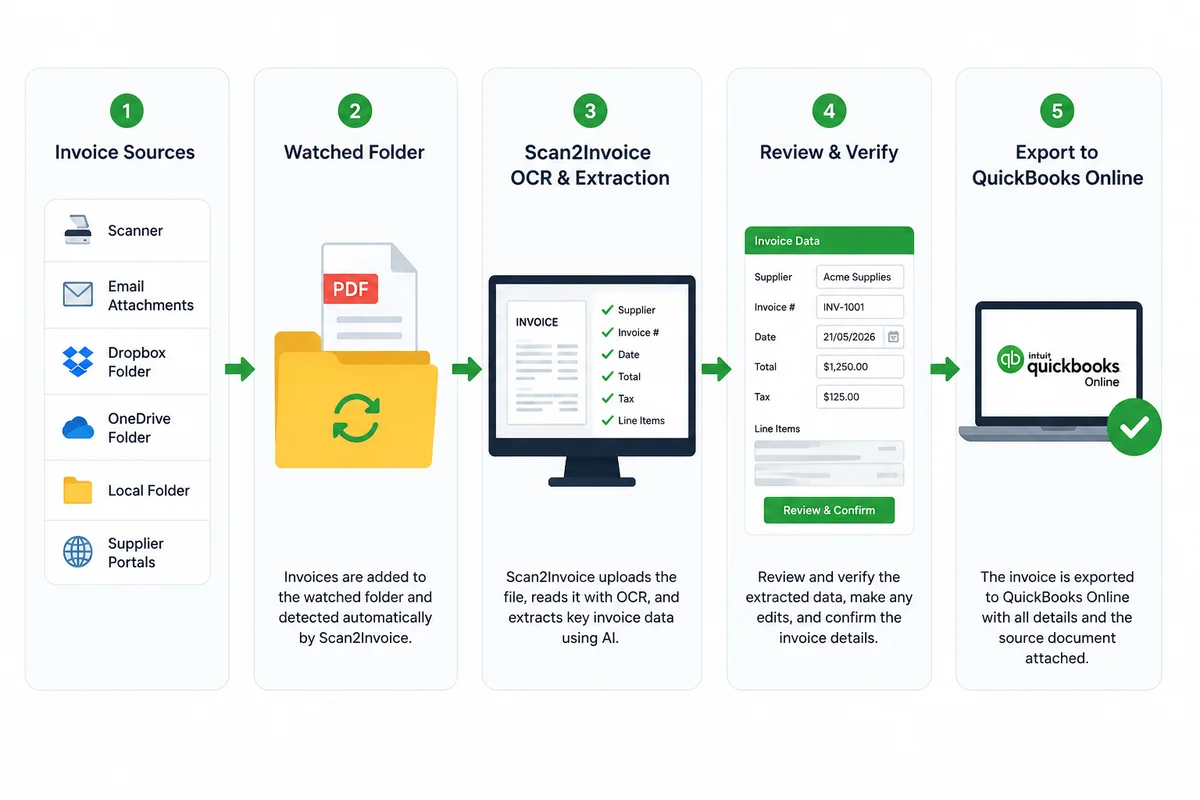 Scan2Invoice Auto Import Folders for QuickBooks Online
Best QuickBooks Online watched folder use cases
Scan paper invoices into QuickBooks Online
If you receive paper supplier invoices, configure your scanner software to save PDFs into a dedicated folder.
Scan2Invoice monitors that folder, imports new scans, runs OCR and extraction, and prepares the invoice data for review before export to QuickBooks Online.
This is useful for bookkeeping firms, accounts payable teams, and high-volume scanning workflows.
Auto import downloaded supplier PDFs
Many suppliers require you to log in to a portal and download invoices manually.
Instead of uploading each PDF after download, save supplier invoices directly into a watched folder. Scan2Invoice picks them up automatically and starts processing them.
Use Dropbox or OneDrive as an invoice intake folder
If clients or staff collect invoices in Dropbox or OneDrive, use the locally synced folder as a Scan2Invoice watched folder.
This creates a simple shared intake workflow:
Client or staff adds invoice → Dropbox or OneDrive syncs locally → Scan2Invoice auto imports → Review → QuickBooks Online
Set up QuickBooks Online auto import in Scan2Invoice
Setup is straightforward.
- Install Scan2Invoice from www.scan2invoice.com
- Sign in with your BillBjorn account
- Open the company that should receive the imported documents
- Open Auto Import Folders
- Click Add Folder
- Select the folder you want to monitor
- Enable the folder
You can use a scanner output folder, a downloads folder, a Dropbox folder, a OneDrive folder, or a dedicated local invoice folder.
For existing folders, choose watch new files only unless you intentionally want to import historical documents already inside the folder.
Important things to know
Watched folders are designed to automate intake, not bypass accounting review.
Keep these points in mind:
- Scan2Invoice must be running and signed in for watched folders to import files.
- Dropbox and OneDrive folders must be synced locally before files can be imported.
- Scan2Invoice monitors files directly inside the watched folder. Subfolders are not monitored automatically.
- Password-protected, damaged, or locked files may not import until the issue is resolved.
- Auto Import does not automatically post invoices to QuickBooks Online. You review before export.
- Auto-splitting multi-invoice PDFs works when the PDF contains searchable text.
These safeguards keep the workflow predictable while still removing unnecessary manual uploads.
Why bookkeepers use watched folders for QuickBooks Online
Bookkeeping and accounts payable teams often deal with invoices from many sources.
A watched folder gives everyone a simple rule:
Put the invoice in the correct folder.
Scan2Invoice then handles the intake step automatically.
This is helpful when:
- Clients scan paper invoices in batches
- Staff download invoices from supplier portals
- Teams collect documents in Dropbox or OneDrive
- Bookkeepers process multiple QuickBooks Online companies
- Businesses want OCR and data extraction without repeated manual uploads
The result is a faster, cleaner path from invoice file to QuickBooks Online.
Start auto importing invoices into QuickBooks Online
Scan2Invoice watched folders help you automate the first step of invoice processing.
Use them to automatically import supplier invoices from scanner folders, downloads, Dropbox, OneDrive, and local folders into a QuickBooks Online review and export workflow.

Frequently asked questions
Here are answers to common questions about using Scan2Invoice watched folders to automatically import invoices into a QuickBooks Online processing workflow. For more details, visit our knowledge base.
Can QuickBooks Online auto import invoices from a watched folder?
QuickBooks Online does not directly monitor local folders on your computer. Scan2Invoice adds watched folder support by monitoring a local or synced folder, importing new invoice and receipt files automatically, and sending them through OCR and data extraction before review and export to QuickBooks Online.
What is a watched folder for QuickBooks Online invoice processing?
A watched folder is a folder on your computer that Scan2Invoice monitors. When a supported invoice or receipt file is added, Scan2Invoice automatically imports it into the selected company for OCR, data extraction, review, and export to QuickBooks Online.
Can I scan invoices into QuickBooks Online automatically?
Yes. You can scan invoices into a folder, use that folder as a Scan2Invoice watched folder, and let Scan2Invoice automatically import the files for OCR and review before exporting the data to QuickBooks Online.
Can I use Dropbox or OneDrive as a QuickBooks Online auto import folder?
Yes. Scan2Invoice can monitor Dropbox or OneDrive folders as long as those folders are synced locally on the computer where Scan2Invoice is running.
Do watched folders work in the BillBjorn web app?
No. Watched folders require the Scan2Invoice desktop application because the feature needs access to local folders, scanner output folders, or locally synced cloud folders.
Does Auto Import post invoices directly to QuickBooks Online?
No. Auto Import handles document intake, OCR, and data extraction. You still review the extracted invoice data before exporting it to QuickBooks Online.