Automate Xero Invoice Capture with Scan2Invoice Watched Folders
A faster way to collect supplier invoices before they reach Xero
Xero is where your accounting happens.
But supplier invoices usually start somewhere else.
They arrive as:
- scanned paper invoices
- PDFs downloaded from supplier portals
- email attachments
- Dropbox files
- OneDrive files
- shared bookkeeping folders
That creates a common bottleneck for bookkeepers and small businesses: getting every invoice into a clean review workflow before it is entered into Xero.
Scan2Invoice watched folders help solve that problem.
Instead of manually uploading each invoice, you save or scan files into a folder on your computer. Scan2Invoice monitors that folder, imports new invoice files automatically, runs OCR and data extraction, and prepares the results for review before export to Xero.
The workflow is simple:
Scanner / Dropbox / OneDrive / Downloads → Watched Folder → OCR & Extraction → Review → Xero
This gives Xero users a practical bridge between desktop document handling and cloud accounting.
Why Xero users need better invoice intake
Xero is excellent once the accounting data is ready.
The messy part is often everything before that:
- collecting invoices from different places
- handling paper documents
- downloading supplier PDFs
- saving email attachments
- organising files for client review
- preparing documents before entry into Xero
For a few invoices, manual upload is fine.
For bookkeepers, accountants, and businesses processing regular supplier invoices, it becomes repetitive admin.
Scan2Invoice watched folders reduce that manual handling by turning ordinary folders into automated invoice intake points.
From scattered files to a cleaner Xero workflow
A watched folder gives your team one place to put invoices.
Scan2Invoice does the next step automatically.
| Without watched folders | With Scan2Invoice watched folders |
|---|---|
| Files sit in downloads, email, or shared drives | Invoices are collected in a dedicated import folder |
| Users upload invoices one by one | New files are imported automatically |
| Scanner workflows require manual handling | Scanner output can feed directly into processing |
| Bookkeepers chase files across locations | Teams use a repeatable intake process |
| Documents still need to be prepared for Xero | OCR and extraction prepare invoices for review |
The result is a smoother Xero invoice capture workflow without forcing every document through a manual upload step.
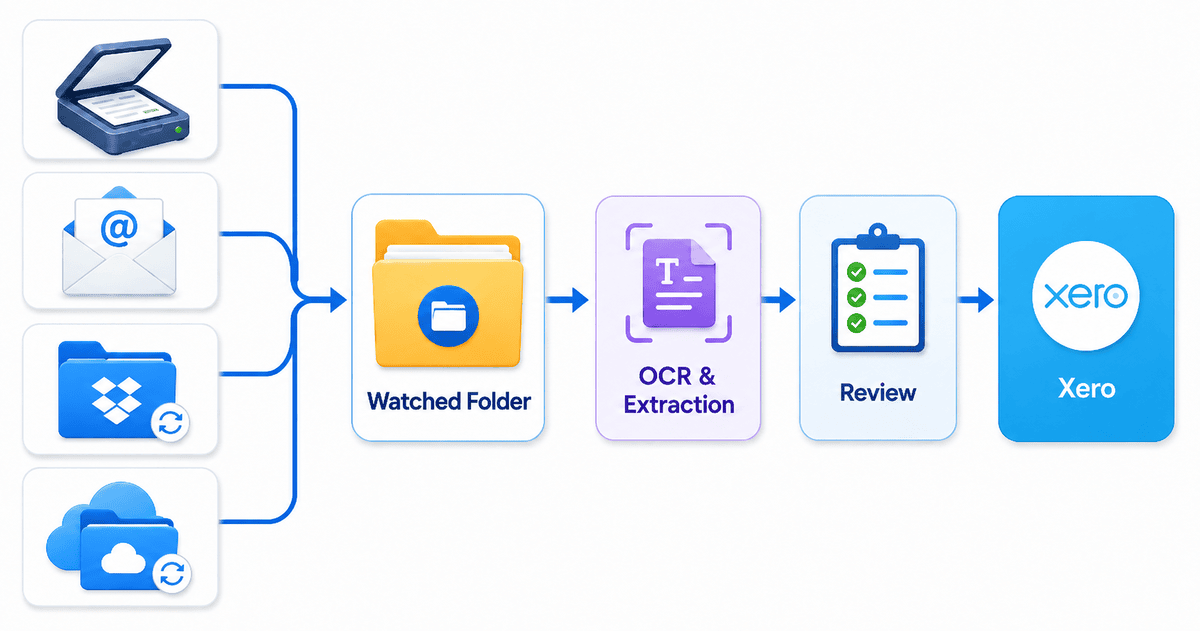 Xero watched folder invoice capture with Scan2Invoice
Built for real bookkeeping workflows
Scan2Invoice watched folders are especially useful when invoices come from multiple sources.
Supplier portal downloads
Many suppliers do not email invoices.
Users log in, download a PDF, and then need to process it.
With Scan2Invoice, the workflow becomes:
Download invoice → Save to watched folder → Review extracted data → Export to Xero
This is ideal for recurring supplier invoices that must be collected manually.
Scanner output folders
For paper invoices, Scan2Invoice fits naturally into desktop scanning workflows.
Scan invoices into a dedicated folder, and Scan2Invoice can import them automatically for OCR and extraction.
This is useful for:
- bookkeeping firms
- accounts payable teams
- paper-heavy suppliers
- batch scanning workflows
- businesses that still receive physical invoices
Dropbox and OneDrive folders
If clients or team members already use Dropbox or OneDrive to collect invoices, Scan2Invoice can monitor those synced folders locally.
That means invoices can be shared into a folder and automatically picked up for processing.
This creates a simple intake workflow for outsourced bookkeeping and multi-user document collection.
How Scan2Invoice works with Xero
Scan2Invoice is the desktop version of BillBjorn and uses the same account and company data.
Watched folders are available in the desktop application because folder monitoring requires access to files on your computer or synced drives.
A typical Xero workflow looks like this:
- Add supplier invoices to a watched folder
- Scan2Invoice detects the new files
- OCR reads the invoice or receipt
- AI extraction captures supplier, invoice number, date, totals, tax, and line items
- The user reviews the extracted data
- The invoice data is exported to Xero
Scan2Invoice helps automate intake and extraction.
The user stays in control of the review step before anything is sent to Xero.
Set up a watched folder in Scan2Invoice
Step 1: Install Scan2Invoice
Install the Scan2Invoice desktop application from:
Sign in using your BillBjorn account email address and password.
Open the company that should receive the imported documents.
Step 2: Open Auto Import Folders
In Scan2Invoice, open:
Auto Import Folders
This page shows your watched folders and their current status.
Step 3: Add your import folder
Click:
Add Folder
Then choose the folder you want Scan2Invoice to monitor.
You can choose:
Watch new files only
Best for folders that already contain old invoices or archives.
Import existing files
Use this when you want to import supported files already inside the folder.
If many files are detected, Scan2Invoice may ask you to type:
IMPORT
This helps prevent accidental bulk imports.
Step 4: Enable the folder
Turn on:
Enabled
Scan2Invoice will now monitor the folder for new supported invoice and receipt files.
Practical tips for Xero invoice capture
For the cleanest workflow:
- use one watched folder per Xero company
- avoid watching large archive folders
- keep Scan2Invoice open and signed in
- keep Dropbox or OneDrive synced locally
- use clear filenames where possible
- do not manually modify the Processed folder
After successful upload, Scan2Invoice moves imported files into a Processed subfolder automatically.
What to know before using watched folders
Watched folders are designed for reliable desktop automation, but there are a few important rules.
Only files directly inside the selected folder are monitored. Subfolders are ignored.
Scan2Invoice waits until files finish copying before importing them, which is useful for scanners, synced folders, and larger PDFs.
Dropbox and OneDrive folders must be synced locally before Scan2Invoice can access the files.
Password-protected or damaged PDFs may not import.
Auto Import does not automatically post invoices to Xero. It imports documents for OCR and extraction so the user can review the data before export.
Why this matters for Xero bookkeepers
Bookkeeping efficiency depends on repeatable workflows.
A watched folder gives Xero users a simple process:
- Collect invoices in the right folder
- Let Scan2Invoice import them
- Review the extracted invoice data
- Export to Xero
This reduces repetitive uploads and makes invoice intake easier to standardise across clients, suppliers, and teams.
For small businesses, it means less admin.
For bookkeepers, it means fewer scattered files and a cleaner review process.
For accounting firms, it creates a more scalable intake workflow before invoices reach Xero.
See Scan2Invoice watched folders for Xero
Scan2Invoice helps Xero users automate invoice capture from local folders, scanners, Dropbox, OneDrive, and downloaded PDFs.
Use it to:
- capture supplier invoices faster
- reduce manual uploads
- process scanned invoices
- collect client documents from synced folders
- prepare invoices for Xero review and export
- support repeatable bookkeeping workflows

Frequently asked questions
Here are answers to common questions about using Scan2Invoice watched folders to capture supplier invoices and prepare them for Xero. For more details, visit our knowledge base.
Can Xero import invoices from a watched folder?
Xero does not monitor local folders on your computer. Scan2Invoice adds watched folder automation by monitoring a local or synced folder, importing new invoice files, extracting the data, and preparing them for review and export to Xero.
What is a watched folder in Scan2Invoice?
A watched folder is a folder on your computer that Scan2Invoice monitors automatically. When a supported invoice or receipt file is added, Scan2Invoice uploads it for OCR and data extraction.
Can I scan invoices into Xero?
Yes. Scan2Invoice supports desktop scanning workflows. You can scan invoices into a watched folder, review the extracted data, and export the invoice information to Xero.
Can I use Dropbox or OneDrive with Scan2Invoice and Xero?
Yes. Scan2Invoice can monitor Dropbox or OneDrive folders when those folders are synced locally on the computer where Scan2Invoice is running.
Does Scan2Invoice automatically post invoices to Xero?
No. Scan2Invoice imports invoices for OCR and data extraction. You still review the extracted data before exporting invoices to Xero.
What file types can Scan2Invoice auto import from a watched folder?
Scan2Invoice can auto import supported invoice and receipt files such as PDFs and scanned image files from a watched folder. Once imported, the documents are processed with OCR and data extraction before review and export to Xero.