Stop Reviewing Every Bill.
Auto-Send the Routine Ones.
Try Auto-Send free during your trial. Available on Medium and Large plans.
Trusted Partner App for Leading Cloud-Based Accounting Software



Automate the Routine. Review Only the Exceptions.
Switch on Auto-Send for your regular suppliers. Every bill runs through 15 checks: if it passes, it goes straight to your accounting software. If anything looks off, it's held and you're told why.
Start Your Free 30-Day Trial NowOther tools trust the supplier. Auto-Send checks the bill.
Most auto-publish features work like a switch: mark a supplier as trusted, and every future document from that supplier goes straight through.
The problem is that a familiar supplier can still send an unusual bill: a bigger amount, a repeated invoice number, a coding change. Auto-Send doesn't trust the name on the bill. It checks the bill itself, every time.
| Supplier-trust auto-publish | BillBjorn Auto-Send | |
|---|---|---|
| What decides? | The supplier is marked as trusted | Each bill passes 15 checks |
| Bigger amount than usual | Can go straight through | Held above your limit |
| Repeated invoice number | Depends on the tool | Held as a duplicate |
| When something's off | Depends on the tool | Held, with an email explaining why |
From inbox to your books without opening a single bill
- A bill arrives by email. Suppliers send it to your BillBjorn email address, or you forward it from Gmail or Outlook.
- AI reads it. Supplier, dates, tax, totals, and every line item.
- Your rule codes it. Account, tax code, and tracking are filled in for suppliers you know.
- Auto-Send checks it and sends it. If every check passes, it's in your books. If not, it's held with the reason.
Without Auto-Send, AI extraction saves you the typing, but you still open every bill, compare the totals, check the coding, and click Send, because there's no way to know which bills need a closer look. So you check them all, including the 40 that were perfectly fine.
Auto-Send removes that last step. You only open the bills that were held.
A real example: your regular book supplier
You order reference books from Carlton Technical Books a few times a month, usually a few hundred dollars at a time. You've set up a rule for them with Auto-Send on and a maximum of $1,000.
- First order, $450: the bill arrives by email. Supplier known, total matches, account and tax code valid, under $1,000, new invoice number. It's in your books before you've opened your inbox.
- Second order, $620: same thing. You don't touch it.
- Third order, $1,100: a bigger order than usual. Auto-Send holds it and emails you: "Amount exceeds automatic-send limit." The bill shows exactly why: total $1,100, limit $1,000. You check it, agree, and send it with one click.
- A week later: the supplier's system sends the second invoice again by mistake. Same supplier, same invoice number. Auto-Send holds it as a possible duplicate, so it isn't entered twice.
Two bills you never had to look at. Two you did, and both were worth it.
Now picture that across your 20 most predictable suppliers.
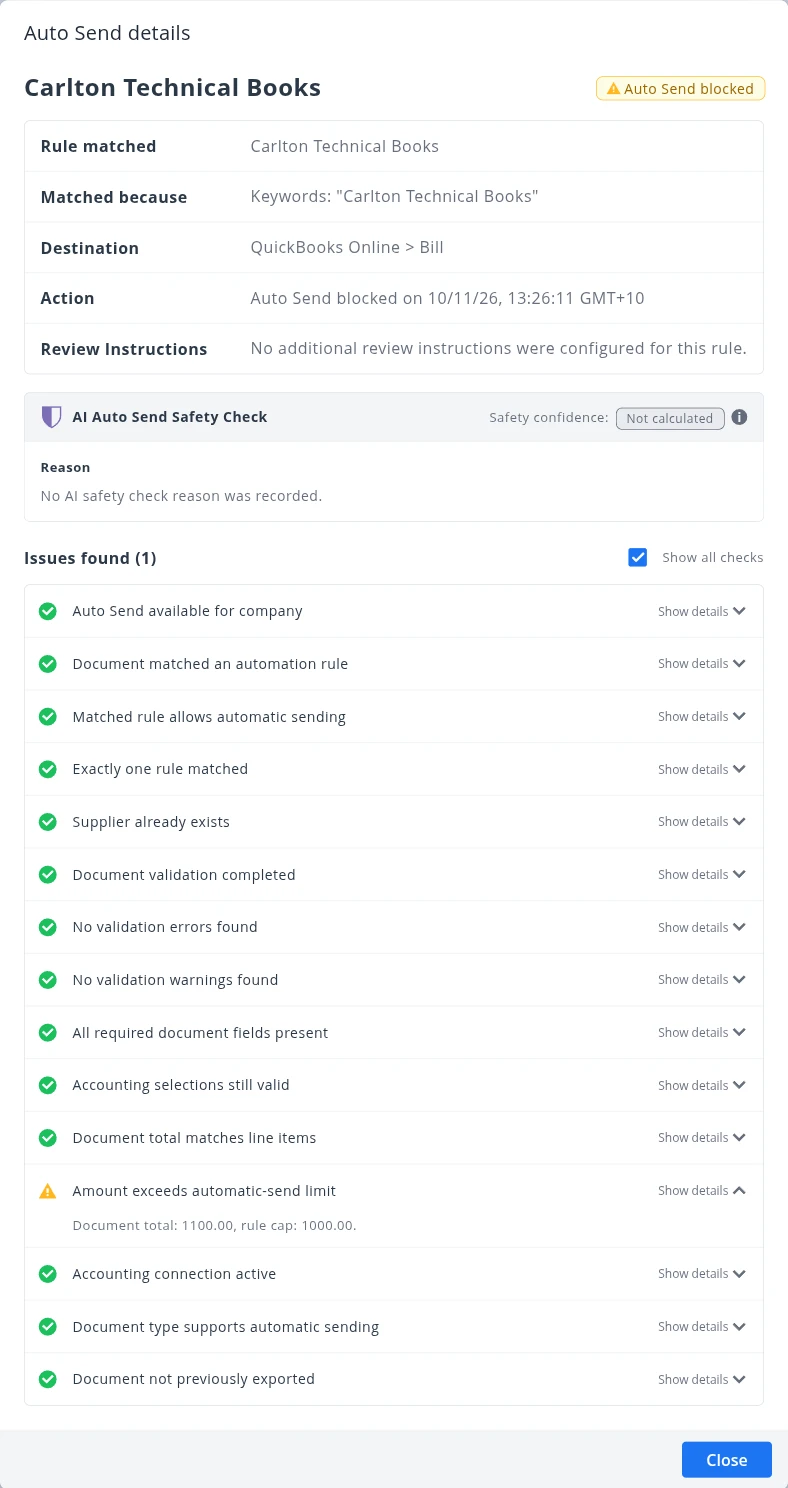 Every check, and the one that held the bill
Only See the Bills That Need You
Let BillBjorn send the routine bills and keep the exceptions for you.
Start Your Free 30-Day Trial NowHow Auto-Send works
Set it up once per supplier. From then on, every bill is checked before it goes anywhere.
Turn it on for a supplier
Switch on Auto-Send in the supplier's rule and set a maximum amount. New suppliers are never sent automatically.
Every bill is checked
Each bill runs through 15 checks: complete data, totals that add up, valid accounts and tax codes, your limit, and duplicates.
Sent, or held with a reason
Bills that pass go straight to your accounting software. Bills that don't wait for you, and you get an email explaining why.
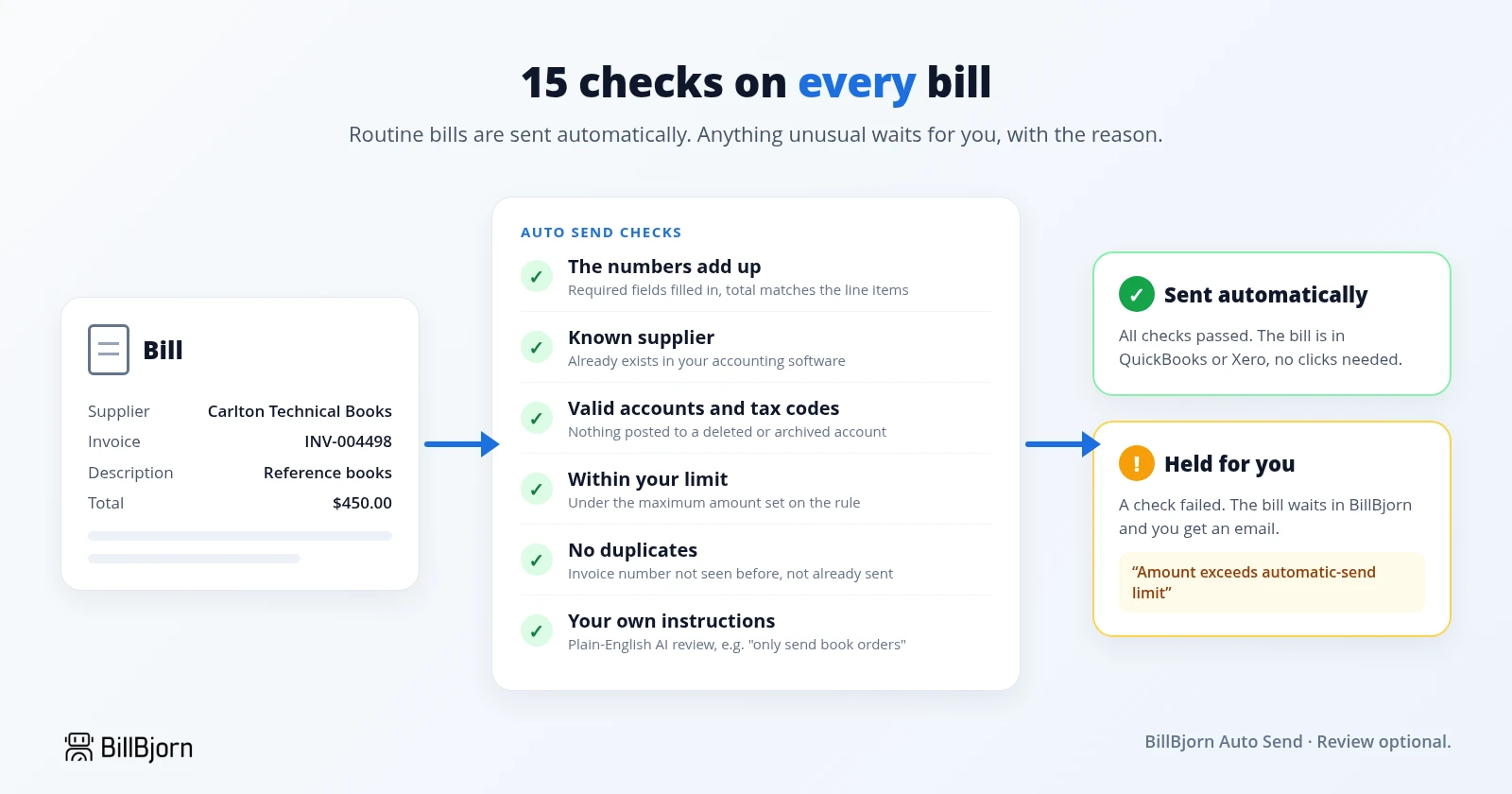 15 checks on every bill
What has to be true before a bill is sent
Auto-Send doesn't just recognise the supplier name. Every single bill has to pass all of these, every time.
The numbers add up
Every required field is filled in, the total matches the line items, and there are no errors or warnings on the bill.
Known suppliers only
The supplier must already exist in your accounting software. A new or unrecognised supplier is never sent automatically.
Valid accounts and tax codes
Accounts, tax rates, and tracking categories must still exist in your accounting file, so nothing is posted to a deleted or archived account.
Within your limit
Every Auto-Send rule has a maximum amount. A bill above it waits for you, no matter which supplier sent it.
No duplicates
A repeated invoice number from the same supplier is held, as is anything already sent or already on its way.
Your own instructions
Tell the AI review what matters in plain English, such as "only send book orders; hold anything else".
When a bill is held, you know why
Held bills aren't a mystery. Each one comes with:
- An email with the supplier, amount, and the reason it was held, sent to the people you choose
- Auto-Send details on the bill, showing which checks passed and which one didn't
- A report of every automatic decision: what was sent, what was held, and why
Fix or confirm the bill, click Send, done.
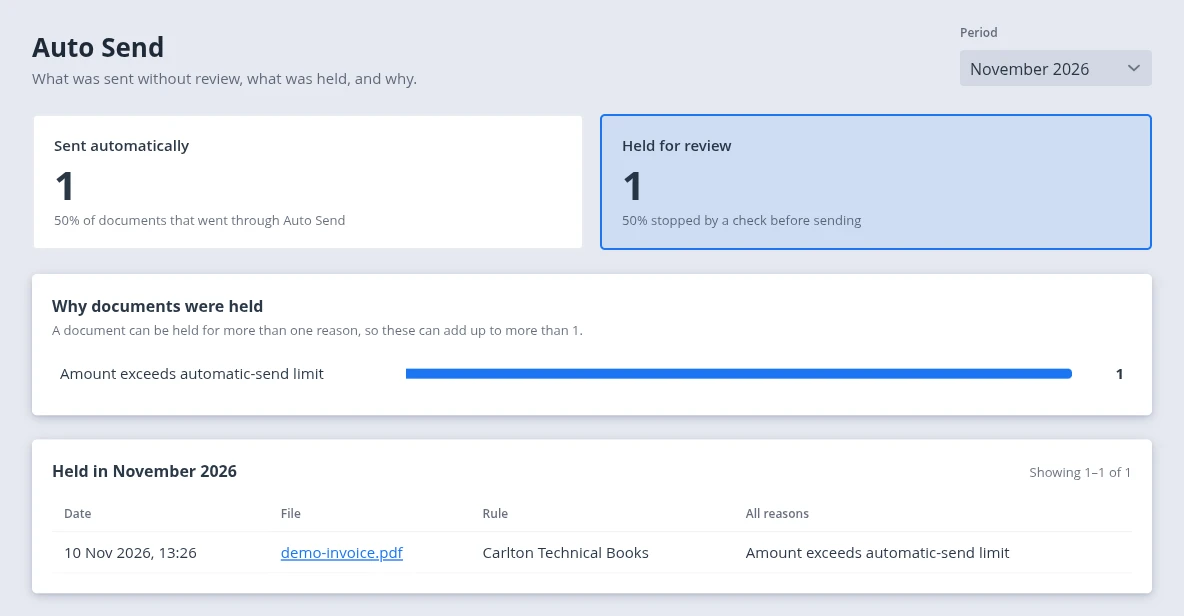 The Auto-Send report
You stay in control
- You choose the suppliers. Auto-Send only runs on rules where you switch it on.
- You set the limit. Every Auto-Send rule has a maximum amount.
- You decide who can turn it on. Only users with the Standard role or higher, and every activation is recorded in the audit log.
- You can switch it off any time. Bills simply go back to normal review.
Important: automated checks reduce routine review; they don't replace your responsibility for the books. Errors can still occur, so check your first results in your accounting software and keep an eye on held bills.
Start with your five most predictable suppliers
You don't have to automate everything on day one:
- Pick three to five suppliers whose bills look the same every month: rent, software subscriptions, utilities, regular stock.
- Set a maximum amount a little above their usual bill.
- Check the first few results in your accounting software.
- Add more suppliers as your confidence grows.
Step-by-step setup: How to enable Auto-Send.
Works with the rest of BillBjorn
BillBjorn reads the supplier, dates, tax, totals, and every line item. Rules fill in the coding for suppliers you know, and Auto-Code splits mixed invoices into the right accounts. Auto-Send is the last step: once the bill is ready and passes its checks, it's sent.
Auto-Send works with QuickBooks Online, Xero, Sage Accounting, MYOB Business, and FreshBooks, and it's included on the Medium and Large plans (not on Solo or Small). See pricing for details. Comparing tools? See how BillBjorn compares to Dext.
Stop Checking Bills That Were Fine All Along
Let Auto-Send handle the routine bills and keep the exceptions for you. Try BillBjorn free for 30 days.
Start Your Free 30-Day Trial Now
Frequently asked questions
Common questions about BillBjorn Auto-Send. For step-by-step setup, see How to enable Auto-Send in our knowledge base.
Is it safe to send bills without reviewing each one?
Every bill runs through 15 checks before it is sent, and anything that fails is held for you with the reason. Auto-Send only works for suppliers you switch it on for, only for suppliers that already exist in your accounting software, and only below the maximum amount you set. Errors can still occur, so check the first results and keep an eye on held bills.
What happens when a bill is held?
It stays in BillBjorn for review, and you get an email with the supplier, amount, and reason. Fix or check the bill, then send it as usual. The Auto-Send details on each bill show exactly which check stopped it.
What if a wrong bill gets sent?
Correct it in your accounting software, then tighten the rule: lower the maximum amount, add an AI review instruction, or switch Auto-Send off for that supplier. Every automatic send is recorded, so you can see what was sent and when.
Can bills sent by email go straight into QuickBooks or Xero?
Yes. Every company gets its own BillBjorn email address. Forward bills to it, or have suppliers send them there. BillBjorn reads each bill, runs the Auto-Send checks, and sends the routine ones to your accounting software without anyone opening them.
Which accounting software does Auto-Send work with?
QuickBooks Online, Xero, Sage Accounting, MYOB Business, and FreshBooks.
Which plans include Auto-Send?
Auto-Send is included on the Medium and Large plans. It is not available on the Solo and Small plans. You can upgrade at any time to start using it.
Who can turn on Auto-Send?
Users with the Standard role or higher. Turning it on requires a confirmation that is recorded in the audit log, so you always know who enabled it and when.
Can I switch it off?
Yes, any time, per supplier rule. Bills from that supplier simply go back to the normal review-and-send workflow.
Does Auto-Send pay my bills?
No. Auto-Send records bills in your accounting software. It never moves money; paying bills stays with you.