Email Invoice
Processing for Gmail and Outlook
Trusted Partner App for Leading Cloud-Based Accounting Software





Turn Invoice Emails Into Accounting Entries
Forward invoices from Gmail or Outlook and let BillBjorn extract the data before export to your accounting software.
Start Your Free 30-Day Trial NowWhy Email Is Still the Center of Invoice Intake
For many bookkeepers and small businesses, the invoice workflow starts in email.
Suppliers send PDF invoices to Gmail. Staff forward receipts from Outlook. Clients send bills to a shared accounts inbox. Some invoices arrive as attachments, some are embedded in the email body, and some are forwarded several times before they reach the person doing the books.
That makes email convenient, but it also creates a bottleneck.
Someone still has to:
- open each message
- download the invoice attachment
- rename or file the PDF
- upload it into an invoice processing tool
- type or check supplier, invoice number, date, tax, and total
- enter the bill into QuickBooks Online or Xero
Email invoice processing removes the most repetitive part of that workflow. Instead of downloading every PDF manually, you forward invoice emails to a dedicated BillBjorn email address. BillBjorn captures the attachment, extracts the invoice data with AI, and places the document in a review workflow before export to your accounting software.
The practical workflow is simple:
Gmail / Outlook / Shared Inbox -> Dedicated BillBjorn Email Address -> AI Extraction -> Review -> QuickBooks Online or Xero
That simplicity is the point. Your team does not need a new inbox habit. They only need to forward invoices to the right address.
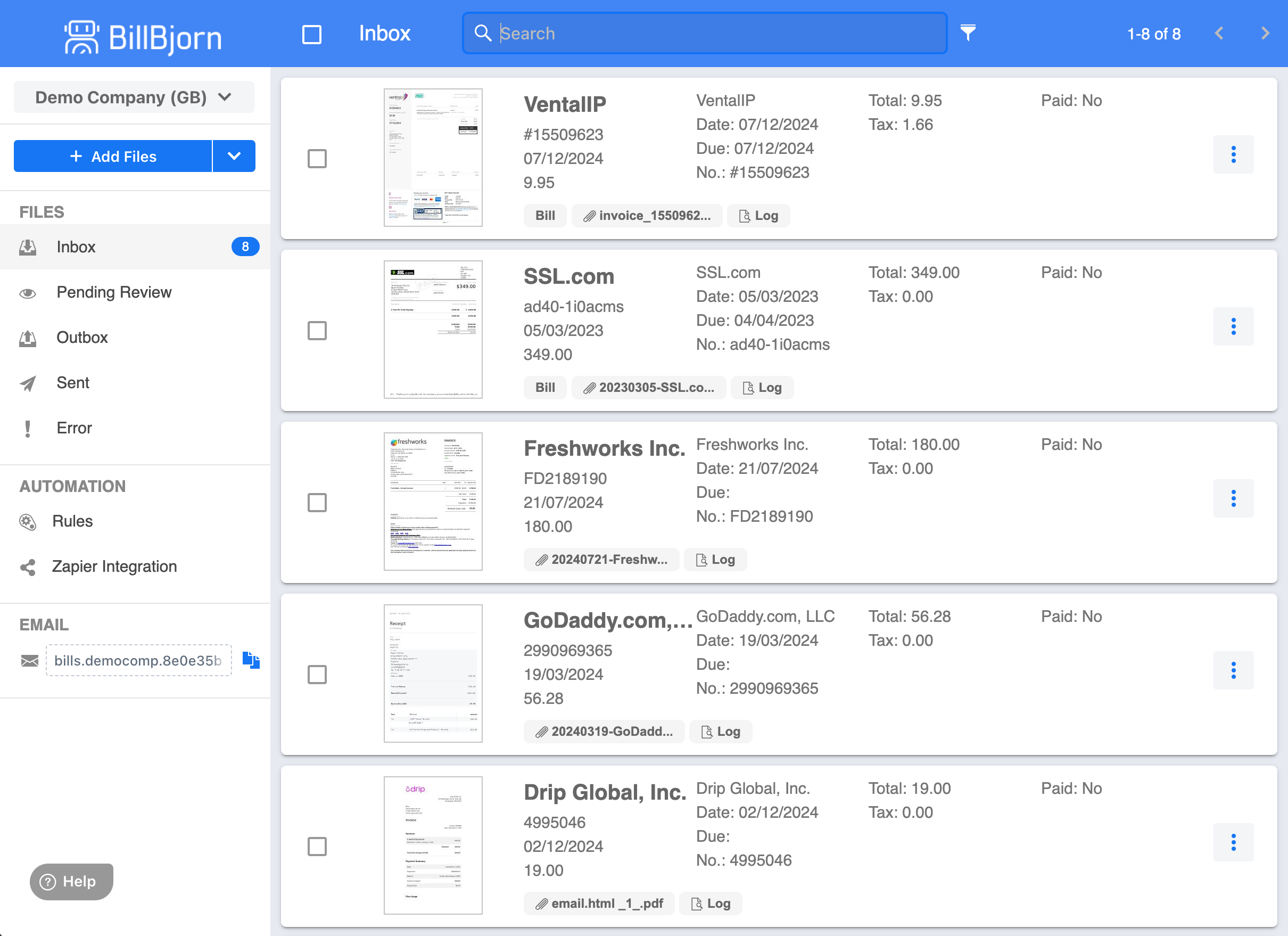 BillBjorn invoice inbox for email invoice processing
What Email Invoice Processing Actually Means
Email invoice processing is the workflow that turns supplier invoices from your inbox into accounting-ready bill data.
For a Gmail, Outlook, or Microsoft 365 user, that usually means forwarding invoice emails or attachments to a dedicated invoice address. BillBjorn then captures the document, runs OCR and AI extraction, and prepares the supplier, invoice number, dates, tax, totals, and line items for review.
Once reviewed, the bill data can be exported to QuickBooks Online or Xero with the source document attached.
That makes email forwarding more than a place to store PDFs. It becomes the first step in a repeatable invoice capture workflow.
What a Dedicated Invoice Email Address Solves
A dedicated invoice email address gives your business a clean intake point.
Instead of asking staff or clients to remember where invoice files should be saved, the rule becomes:
Forward supplier invoices to BillBjorn.
That one habit solves several common bookkeeping problems.
| Without a dedicated invoice address | With a dedicated BillBjorn email address |
|---|---|
| Invoices stay buried in personal inboxes | Invoices land in a central processing queue |
| Staff download and upload PDFs manually | Forwarded attachments are captured automatically |
| Shared inboxes become cluttered | The invoice workflow has a clear destination |
| Bookkeepers chase clients for missing bills | Clients can forward invoices as soon as they arrive |
| Accounting entry starts from scratch | AI extraction prepares fields for review |
A dedicated address also keeps email intake separate from accounting export. Forwarding an invoice does not mean it is blindly posted into QuickBooks Online or Xero. It means the invoice reaches BillBjorn, gets processed, and waits for review.
That review step matters. It keeps the bookkeeping workflow controlled while removing the tedious file-handling step.
How Gmail Invoice Processing Works
If your suppliers send invoices to Gmail or Google Workspace, you can forward those emails to your dedicated BillBjorn address.
For occasional invoices, manual forwarding is often enough:
- Open the supplier invoice email in Gmail
- Forward it to your BillBjorn email address
- BillBjorn captures the invoice attachment
- AI extracts the invoice data
- You review and export the bill to QuickBooks Online or Xero
For recurring suppliers, Gmail filters can help standardise the workflow. A filter can match emails from a supplier, emails with invoice-related subject lines, or messages with attachments, then forward matching messages to the BillBjorn address if forwarding is enabled for the mailbox.
Useful Gmail invoice filters often start with:
- supplier sender address
- subject lines containing "invoice", "bill", "statement", or "receipt"
- emails with attachments
- client-specific labels for bookkeeping firms
The goal is not to create a complicated automation project. It is to make sure supplier invoice emails reach the processing queue with as little handling as possible.
For related capture workflows outside email, see how to automate invoice data entry with AI and QuickBooks Online auto import from watched folders.
How Outlook Invoice Processing Works
Outlook and Microsoft 365 mailboxes work well for the same reason: invoices already arrive there.
For simple workflows, a staff member can forward supplier invoice emails directly to BillBjorn. For more repeatable workflows, Outlook rules can route matching emails automatically based on sender, subject, recipient, or attachment conditions.
Common Outlook invoice processing setups include:
- forwarding invoices from an accounts payable inbox
- routing supplier invoices from a shared mailbox
- forwarding invoice emails sent to a department address
- using sender-based rules for regular suppliers
- keeping a copy in Outlook while sending a copy to BillBjorn
This is useful for businesses that already use addresses like accounts@, ap@, or bookkeeping@. Those shared inboxes can stay in place as the human-facing email address, while BillBjorn becomes the processing destination for invoice attachments.
The cleaner the rule, the cleaner the queue. Start with your highest-volume recurring suppliers, then add more forwarding rules as the workflow proves itself.
From Forwarded Email to AI Invoice Extraction
Once an invoice reaches BillBjorn, the important work starts.
BillBjorn reads the forwarded document and extracts the structured data needed for bookkeeping:
- supplier name
- invoice number
- invoice date and due date
- currency
- subtotal, tax, and total
- individual line items
- tax rates and amounts
This is more useful than treating email forwarding as a file dump. The point is not just to collect PDFs. The point is to turn invoice emails into reviewed accounting entries.
Line-item extraction is especially important for bookkeepers. A single supplier invoice may include office supplies, freight, subscriptions, equipment, and tax lines that need different accounting treatment. BillBjorn can extract line detail for review, and BillBjorn AutoCode can help group and code invoice lines based on your accounting setup.
For a deeper look at line-level automation, see how BillBjorn splits invoice lines automatically.
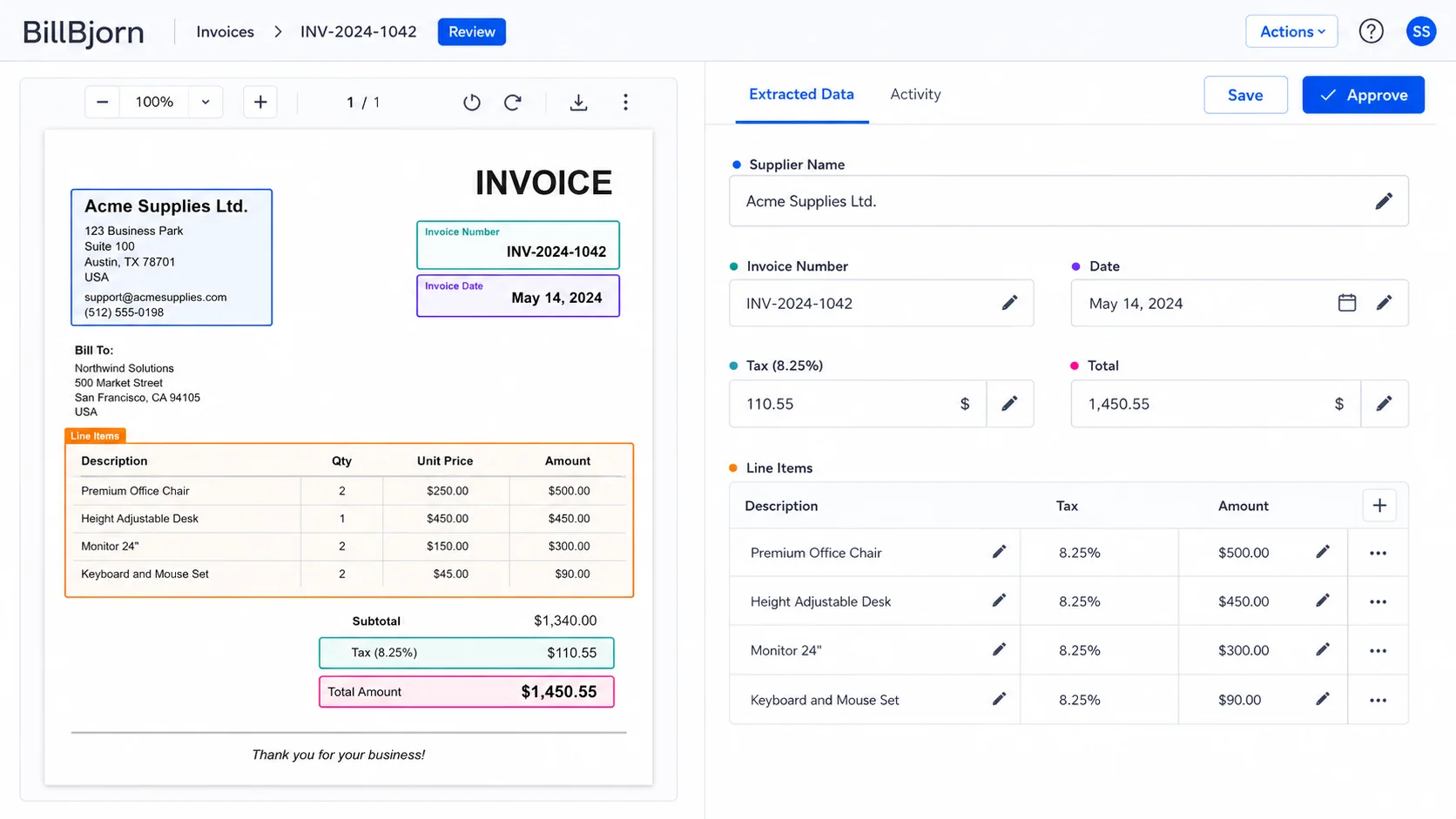 AI extracting fields from an invoice email attachment
Review Before QuickBooks Online or Xero Export
Email forwarding should make invoice intake faster, but it should not remove accounting control.
BillBjorn keeps a review step between extraction and export. You can check the invoice next to the extracted fields, confirm the supplier, adjust line items or coding if needed, and then send the approved bill to the connected accounting platform.
For QuickBooks Online users, that means a cleaner path from emailed supplier invoice to reviewed bill. The original source document can be attached to the bill, which helps with audit support and month-end review. You can learn more in scan invoices into QuickBooks Online and import PDF invoices into QuickBooks Online.
For Xero users, the same intake pattern applies. Forward the invoice, review the extracted data, then export the bill to Xero with the source document attached. See scan invoices into Xero and automate Xero invoice capture with watched folders for related workflows.
BillBjorn also supports Sage Accounting, MYOB Business, and FreshBooks for businesses that process invoices across different accounting platforms.
Best Workflows for Bookkeepers and Small Businesses
The best email invoice processing setup depends on who receives the invoice first.
One Business, One Main Inbox
If most invoices arrive in one Gmail or Outlook inbox, keep the workflow simple.
Forward invoice emails to BillBjorn as they arrive. For regular suppliers, add forwarding rules once the manual habit is working.
This is often enough for small businesses that process a manageable number of supplier bills each week.
Shared Accounts Payable Inbox
If invoices go to a shared accounts@ or ap@ inbox, use that mailbox as the collection point and forward invoice emails from there.
This keeps supplier communication in the shared mailbox while letting BillBjorn handle invoice extraction and review.
Bookkeeping Firm With Multiple Clients
For bookkeeping firms, the main risk is mixing documents between clients.
Use a repeatable client intake process. Make sure each forwarded invoice lands in the correct BillBjorn company workflow before export to QuickBooks Online or Xero.
A simple client instruction can work well:
When a supplier invoice arrives, forward it to the BillBjorn address we provide for your bookkeeping workflow.
That is easier for clients than logging into a portal, naming files correctly, or deciding which folder to use.
Suppliers That Send Invoices Every Month
For recurring suppliers, create Gmail filters or Outlook rules after you have verified the first few invoices process correctly.
Start with high-volume, low-risk suppliers:
- utilities
- software subscriptions
- telecom providers
- recurring wholesale suppliers
- regular rent or storage invoices
Do not try to automate every supplier on day one. Build the workflow around the invoices that create the most repetitive admin first.
Practical Tips for Cleaner Email Invoice Processing
Forwarding is simple, but a few habits make the review queue cleaner.
- Forward the original invoice email where possible, not a screenshot of the invoice.
- Keep the PDF or image attachment included in the forwarded message.
- Avoid forwarding long email chains when a clean supplier email is available.
- Use one invoice per email when possible.
- Ask suppliers to send PDF invoices rather than links to supplier portals.
- For shared inboxes, agree on who forwards and who reviews.
- For Gmail and Outlook rules, start with specific supplier senders before broad subject-line rules.
- Keep human review in place before exporting to QuickBooks Online or Xero.
These are small process choices, but they reduce noise and make AI invoice extraction more predictable.
Email Forwarding vs Watched Folders
Email forwarding is best when invoices arrive in Gmail, Outlook, or a shared mailbox.
Watched folders are best when invoices arrive as files on a computer, scanner output folder, Dropbox folder, OneDrive folder, or download folder.
| Intake source | Best BillBjorn workflow |
|---|---|
| Gmail invoice emails | Forward to dedicated BillBjorn email address |
| Outlook invoice emails | Forward to dedicated BillBjorn email address |
| Shared AP inbox | Forward or route invoice emails to BillBjorn |
| Scanner output folder | Use Scan2Invoice watched folders |
| Dropbox or OneDrive folder | Use Scan2Invoice watched folders when synced locally |
| Supplier portal downloads | Save to watched folder or upload directly |
Many businesses use both. Email forwarding handles supplier emails. Scan2Invoice watched folders handle scanner and local-folder workflows.
If you use QuickBooks Online, read QuickBooks Online auto import from watched folders. If you use Xero, read Xero watched folder invoice capture.
Getting Started With Email Invoice Processing
You do not need a large AP automation rollout to start processing invoice emails.
Start with a narrow workflow:
- Sign up for BillBjorn
- Connect QuickBooks Online or Xero
- Forward a few real supplier invoices to your dedicated BillBjorn email address
- Review the extracted supplier, date, tax, total, and line-item data
- Export the approved bills to your accounting software
- Add Gmail filters or Outlook rules for recurring suppliers once the workflow is proven
That gives you the benefit of AI invoice extraction without asking your team or clients to learn a complicated new intake process.
Forward the invoice. Review the data. Export the bill.
Process Invoice Emails Without Manual Uploads
Forward invoices from Gmail or Outlook to BillBjorn, then review and export clean bill data to QuickBooks Online or Xero.
Start Your Free 30-Day Trial
Frequently asked questions
Common questions about email invoice processing, Gmail and Outlook forwarding, and exporting extracted invoice data to QuickBooks Online or Xero. For more details, visit our knowledge base.
What is email invoice processing?
Email invoice processing captures supplier invoices from email, reads the attached PDF or image with OCR and AI, extracts structured bill data, and prepares the invoice for review and export to accounting software.
Can I forward Gmail invoices to BillBjorn?
Yes. You can forward supplier invoice emails from Gmail to your dedicated BillBjorn email address. You can also use Gmail filters for recurring suppliers if your email account allows forwarding rules.
Can I forward Outlook invoices to BillBjorn?
Yes. You can forward invoices from Outlook or Microsoft 365 mailboxes to your dedicated BillBjorn email address. For recurring suppliers, Outlook rules can help route matching invoice emails automatically.
Does BillBjorn export email invoice data to QuickBooks Online?
Yes. After BillBjorn extracts the invoice data, you review it and export the approved bill to QuickBooks Online with the source document attached.
Does BillBjorn export email invoice data to Xero?
Yes. BillBjorn can export reviewed invoice data to Xero, including supplier, dates, tax, totals, line items, and the original invoice document.
Should I use one email address for all invoices or separate addresses by company?
For bookkeeping firms and multi-company workflows, separate intake paths are usually cleaner. Use the correct company workflow in BillBjorn so forwarded invoices land in the right review queue before export.