Which suppliers to start with
Good first candidates have bills that look the same every month and that you never correct:
- Rent and outgoings
- Phone, internet and software subscriptions
- Insurance premiums
- Utilities with a stable account
Leave these on manual review: new suppliers, suppliers whose invoices vary a lot, and anything you often recode. Auto-Send only works for a supplier with a rule and a sample document, and new suppliers are never sent automatically.
Setting the maximum amount
Every Auto-Send rule has a Maximum Amount. Any bill above it is held for review, whoever sent it. Set it a little above the supplier's usual bill: high enough that normal variation goes through, low enough that a mistake or an unusual charge doesn't. Review the limits when prices change.
When a bill is held
A bill is only sent automatically when every safety check passes, including an independent AI review that has to be highly confident. Anything else stays in BillBjorn for review, with the reason. Typical reasons are a total above the maximum, a possible duplicate, or a line that couldn't be coded.
Under If Auto-Send Fails, choose Email On Failure and the Recipients, so the right person hears about a held bill straight away rather than finding it later.
The Auto-Send report
Reports → Auto-Send shows, for a chosen month:
- Sent automatically: bills that went to your accounting software without review
- Held for review: bills that needed a person
- Why documents were held: the reasons, so you can see whether a rule needs adjusting
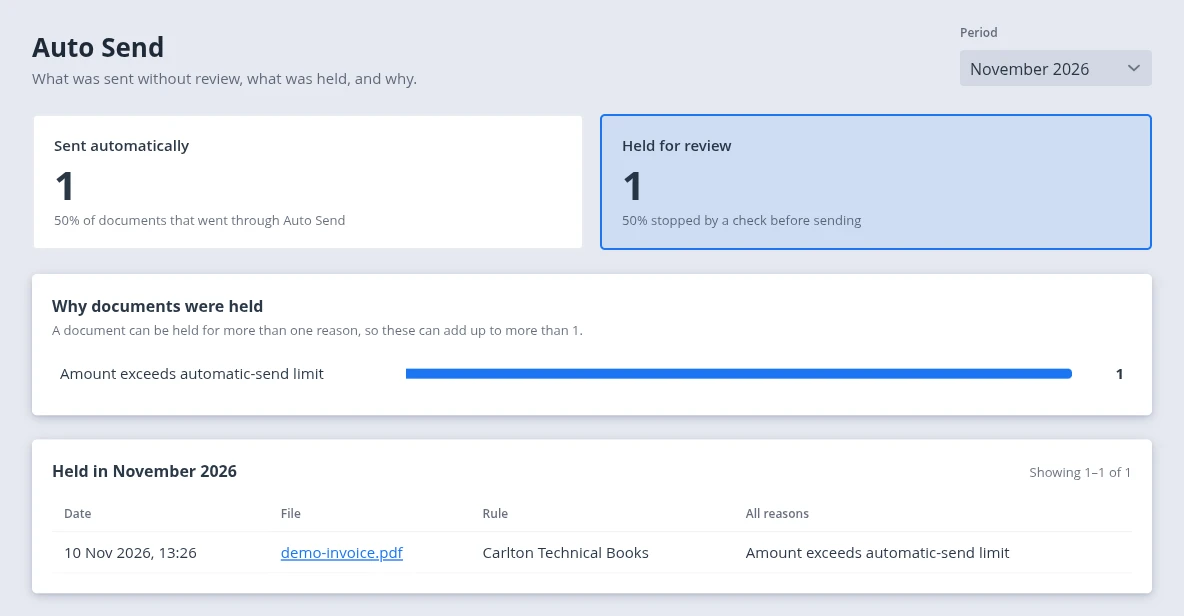 The Auto-Send report
Reports → Document activity shows how many documents were created, exported and deleted each month, which helps when you compare against your accounting software.
Audit log and permissions
- Each document's Audit Log records what happened to it, including automatic sends.
- Only users with the Standard role or higher can turn Auto-Send on, and each activation is recorded.
- Reports are available to Standard users and above.
For an accountant or reviewer, that's the evidence trail: which bills went through automatically, which were held and why, and who enabled the automation.
A four-week rollout
- Week 1: pick three to five suppliers. Check that each rule has a sample document and a maximum amount, then switch on Auto-Send.
- Week 2: read the Auto-Send report. Check a few automatically sent bills in your accounting software.
- Week 3: adjust limits and rules for anything held for a fixable reason. Add a few more suppliers.
- Week 4 onwards: review the report monthly, and add suppliers once their bills have been clean for a few months.
How Auto-Send works overall: send routine bills without review.