What line-item extraction is, and why raw lines aren't enough
Basic invoice scanning reads the header of a bill: supplier, invoice number, dates, tax and total. That's enough when every bill from a supplier goes to one account. It falls short when a single invoice mixes costs, for example a wholesaler invoice with coffee beans, takeaway cups, cleaning products and a delivery fee.
Line-item extraction reads each line of the invoice as well. But copying 37 product lines into your accounting software is its own problem: the bill becomes long, every line still needs an account, and the ledger fills up with SKU descriptions nobody reads.
What a bookkeeper actually wants is the coded result: food to cost of sales, packaging to packaging, cleaning to cleaning supplies, freight to freight. That's what Auto-Code produces.
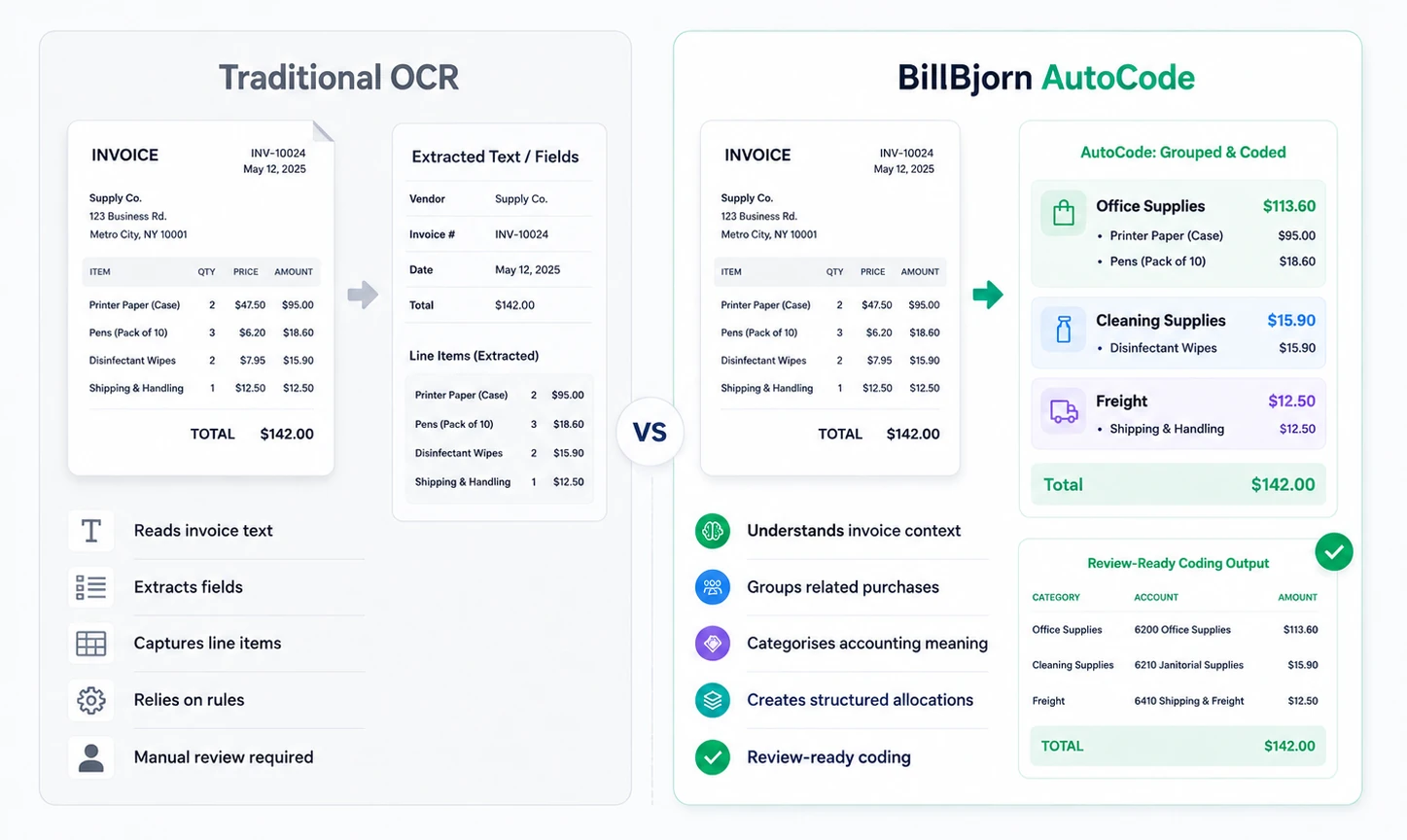 Raw invoice rows vs Auto-Code categories
How Auto-Code groups invoice lines
You set up Auto-Code once per supplier, in a rule:
- Choose "Auto-Code Lines" as the line-item option on the supplier's rule.
- Add your categories. Each category is a line with an account, a tax code and, on QuickBooks Online and Xero, tracking such as a class, location or tracking category.
- Give each category an AI Matching Hint, in plain words: "coffee, milk, sugar, syrups" or "courier, delivery, freight, shipping". The hint tells the AI what belongs in the category, and it takes priority over the wording on the invoice.
- Pick the output. Group by category merges all lines in a category into one accounting line. Keep individual items keeps each invoice line, coded to its category. If your books don't use a tax code on each line (common with US sales tax), you can add the sales tax as a separate line.
From then on, every invoice from that supplier is read line by line, and each line is matched to the category it fits best by meaning, not by exact text. When lines are grouped and a category has no fixed description, the AI writes a short one from the items in it, such as "Coffee beans, milk and syrups".
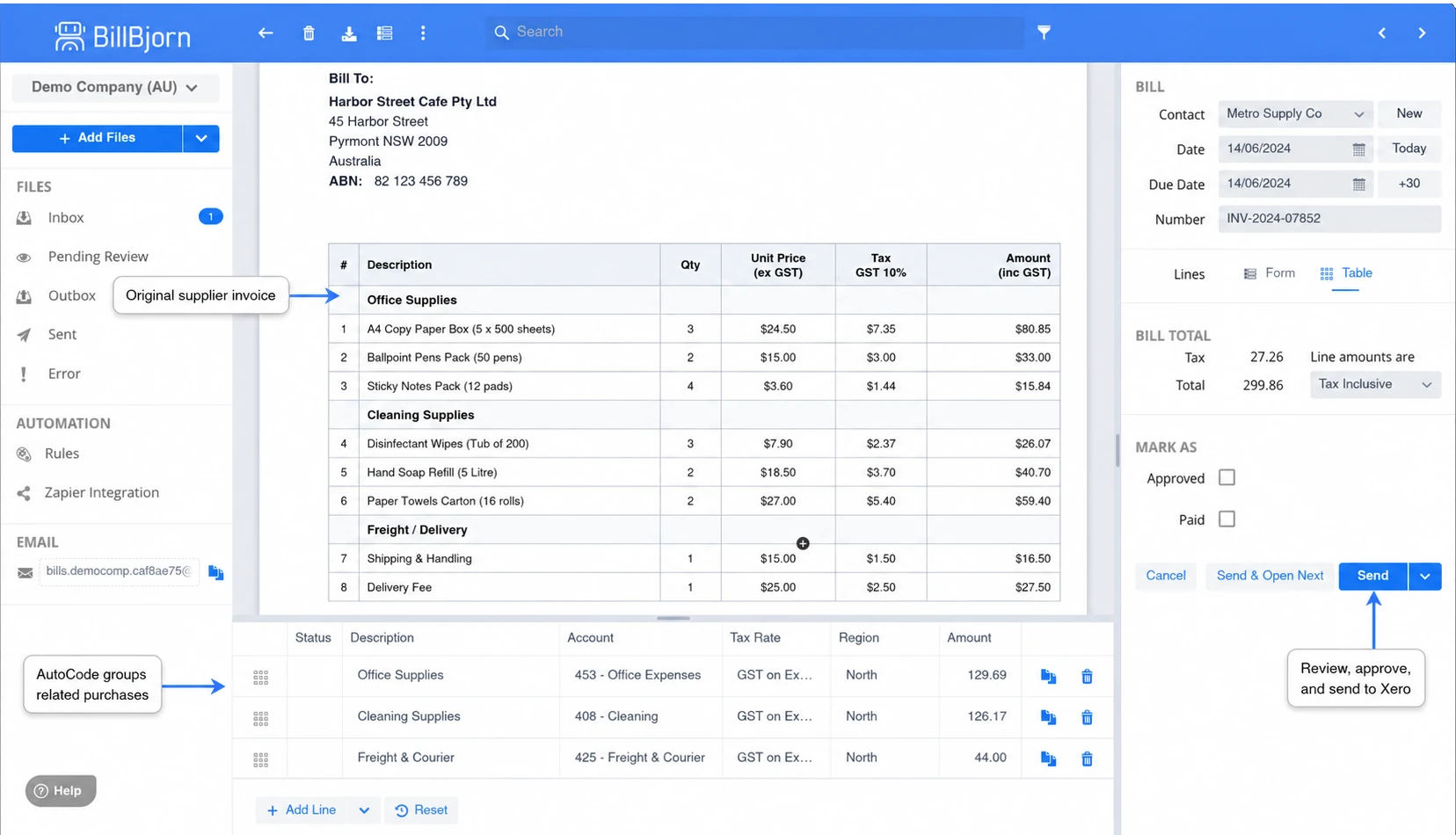 Auto-Code result on the review screen
For a step-by-step example, see how to split one invoice across multiple accounts automatically.
Nothing is forced into a category
AI that always gives an answer is a risk in bookkeeping. Auto-Code is built to say when it isn't sure:
- Unmatched lines are flagged, not guessed. A line that doesn't fit any category goes to an unmatched line, and the bill shows the warning "Contains unmatched items". You decide where it goes, or add a category so it's handled next time.
- Rounding differences are handled. When the lines and the invoice total differ by a few cents of tax rounding, the difference is added to the main category instead of failing the bill.
- Totals must still add up. The coded lines have to match the invoice total before the bill can be sent automatically.
Other ways to split a bill
Auto-Code is one of four line-item options on a rule:
| Option | What it does | Good for |
|---|---|---|
| Single Line | One line for the whole bill, with the rule's account and tax code | Suppliers whose bills always go to one account |
| Split by Rules | Fixed amounts and percentages you set, e.g. 60% to one account and 40% to another | Shared costs such as rent or utilities split across accounts (or locations, on QuickBooks Online and Xero) |
| Split By Tax | Two lines, the taxable part and the tax-free part, worked out from the invoice total and tax amount | Receipts that mix taxable and tax-free items, such as supermarket receipts |
| Auto-Code Lines | Each invoice line matched to your categories with AI Matching Hints | Mixed invoices from wholesalers, suppliers and trade stores |
Split By Tax doesn't need the invoice's line items at all, which makes it useful for receipts that only show a total and the GST or VAT. It's available where your accounting software uses tax rates. For invoices with two non-zero rates, such as 20% and 5% VAT, use Auto-Code with a category per tax code. See invoices with mixed tax rates.
Coded to your own accounts
Auto-Code categories use your accounting software's own lists, kept in sync by BillBjorn: your chart of accounts and tax rates on every platform, and on QuickBooks Online and Xero also classes, locations, tracking categories, projects and billable customers. The coded bill arrives with the original invoice attached.
| QuickBooks Online | Xero | Sage Accounting | MYOB Business | FreshBooks | |
|---|---|---|---|---|---|
| Auto-Code line items | Yes | Yes | Yes | Yes | Yes |
| Accounts and tax codes | Yes | Yes | Yes | Yes | Yes |
| Tracking, classes, locations, projects | Yes | Yes | No | No | No |
Platform details: QuickBooks Online, Xero, Sage Accounting, MYOB Business, FreshBooks.
Test a rule before it goes live
Before a rule is used on new bills, you can run it against a sample document from that supplier and check that the rule has applied the correct values: which lines matched which category, what was grouped, and what ended up unmatched. Adjust a hint, run the test again, and only then let it handle real invoices.
Line items and Auto-Send
Coded lines are what make it safe to stop reviewing routine bills. With Auto-Send, a bill from a supplier you've switched on is sent to your accounting software only when it passes every safety check, including totals that match the lines and valid accounts and tax codes. A bill with unmatched items is always held for you.
Industry examples: construction and trades, restaurants and cafes, retail and wholesale and dental and medical practices.
What it costs
Line items and Auto-Code are included from the Small plan: US$13 a month for 250 documents (US$10 billed yearly). An invoice counts as one document however many lines or pages it has. There are no credits and no line-item add-on.
| BillBjorn | Dext | AutoEntry | |
|---|---|---|---|
| How line items are charged | Included from the Small plan | Paid add-on | 2 credits per invoice instead of 1 |
Competitor pricing from each vendor's website, November 2026. See the best invoice scanning software compared for full prices.
Want to see what BillBjorn reads from one of your invoices first? Try the free invoice line-item extractor, or start a 30-day free trial and set up Auto-Code for your busiest supplier.