Xero Draft Bills vs
Awaiting Payment and How to Skip the Approve Step
Trusted Partner App for Leading Cloud-Based Accounting Software




TL;DR: In Xero, a Draft bill isn't recorded in your accounts. Only once it's approved does it move to Awaiting Payment, where it counts as money you owe and is ready to pay. Xero's own document capture creates drafts, so every bill still needs an approve click. With BillBjorn, tick Approved on a supplier rule and that supplier's bills arrive as Awaiting Payment. Add Auto-Send and routine bills get there with no review at all, after 15 checks on each one.
This guide is for businesses and bookkeepers without a formal bill approval process: the person entering bills is the person who would approve them, and the goal is simply to get routine bills to Awaiting Payment with as little clicking as possible.
Draft vs Awaiting Payment: what's the difference?
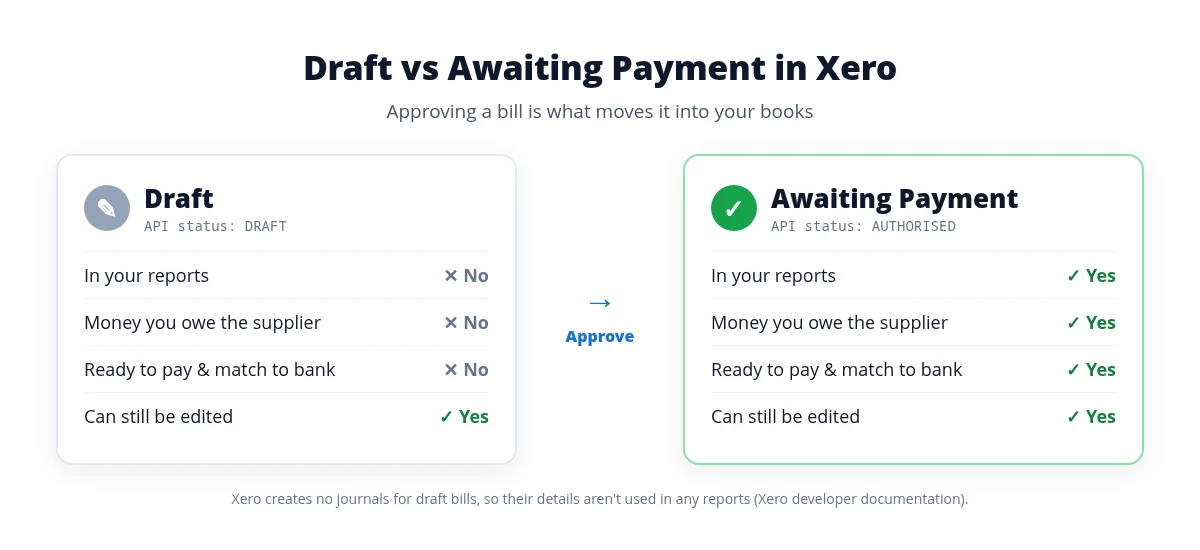 Draft vs Awaiting Payment in Xero
| Draft | Awaiting Payment | |
|---|---|---|
| What it means | Entered, not approved | Approved |
| In your profit & loss and other reports | No | Yes |
| Shows as money you owe the supplier | No | Yes |
| Ready to pay and match to the bank payment | No | Yes |
| Can still be edited | Yes | Yes |
Xero's developer documentation is explicit about the difference. For a draft, "no journals are created so the details will not be used in any reports." Once approved, "journals are created in Xero so all details will be used in reports and payments can be applied." A bill sitting in Draft is invisible to your profit and loss and to what you owe suppliers.
Approving is what moves a bill into your books. In Xero's API, the approved status is called AUTHORISED, and the bill sits on the Awaiting Payment tab until it's fully paid.
Why drafts cost you more time than you think
Every draft needs a person to open it, look at it, and click Approve. That's fine for five bills a month. At a few hundred, it's a job.
It gets worse when you use a capture tool that sends drafts to Xero:
- First review: you check the extracted data in the capture tool and send it.
- Second review: the bill lands in Xero as a draft, so you open it again and approve it.
That's two looks at the same bill, and for a routine supplier both of them usually end with "yep, that's fine".
Meanwhile, until each draft is approved, your reports understate what you owe, and the bill can't move on to payment.
How to approve bills in Xero today
One at a time: open the draft bill, check it, and approve it.
Several at once: in Bills, open the Draft tab, select the bills, and approve them together. It's faster, but you're still responsible for what you approve, so in practice you still check each bill first.
What about Xero's own capture? Xero's Smart Document Capture reads bills for you, but it creates them as drafts. On Xero's product ideas forum, users note that "when Smart Capture creates a bill, it can only be published as a draft." Xero's latest roadmap update (September 2026) lists creating bills in an awaiting payment state under "further ahead". Capture saves the typing; it doesn't save the approve step. (Compare BillBjorn with Hubdoc and Xero's capture.)
Three routes from inbox to Awaiting Payment
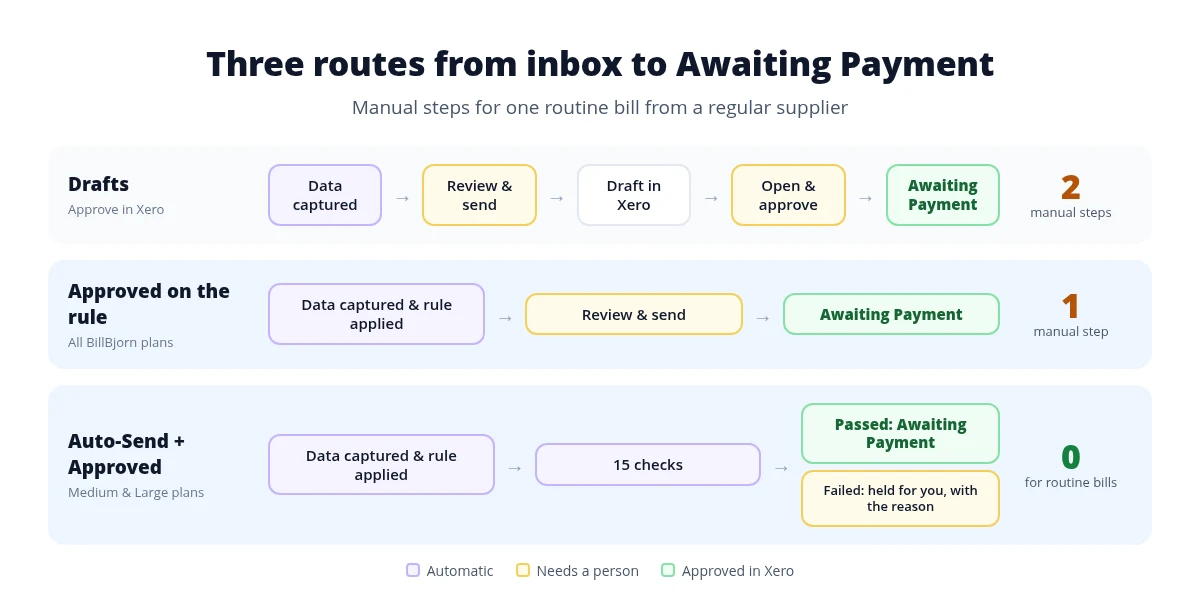 Three routes from inbox to Awaiting Payment
| Route | Manual steps per routine bill | BillBjorn plans |
|---|---|---|
| Drafts (approve in Xero) | 2: review, then approve in Xero | n/a |
| Approved ticked on the rule | 1: review in BillBjorn, click Send | All plans |
| Auto-Send + Approved | 0: only exceptions need you | Medium and Large |
Level 1: tick Approved on the supplier rule
In BillBjorn, every regular supplier can have a rule that fills in the account, tax code, and tracking for their bills. Under Mark as in that rule, tick Approved.
From then on, when you send a bill from that supplier, it goes to Xero already approved and lands in Awaiting Payment. You review it once, in BillBjorn, next to the original document, and that's it. No second visit to the Draft tab.
You can also tick Approved on a single bill before sending it.
This works on every BillBjorn plan, including Solo and Small.

Review Once. Arrive Approved.
Connect Xero, create a rule for a regular supplier, tick Approved, and send your first bill straight to Awaiting Payment. No credit card required.
Start Your Free 30-Day TrialLevel 2: Auto-Send for routine bills, with no review at all
Level 1 removes the second review. Auto-Send removes the first one too, for bills that don't need you.
Switch on Auto-Send in a supplier's rule, set a maximum amount, and keep Approved ticked. When a bill from that supplier arrives, BillBjorn reads it, applies the rule, and runs 15 checks, including:
- the supplier already exists in Xero
- the totals add up
- the accounts and tax codes are still valid
- the amount is under your maximum
- it isn't a duplicate
If every check passes, the bill goes to Xero approved, as Awaiting Payment, without anyone opening it. If one fails, the bill is held in BillBjorn, and you get an email with the reason.
Your Xero bills list fills with routine bills ready to pay. Your BillBjorn inbox shows only the exceptions.
Auto-Send is included on the Medium and Large plans.
Which suppliers to start with
Start with the bills that look the same every month:
- Rent and leases: same supplier, same amount
- Software subscriptions: predictable, usually small
- Utilities and phone: regular, with amounts in a known range
- Regular stock from a familiar supplier: set the maximum slightly above the usual order
Leave one-off suppliers, unusual purchases, and anything you'd want to question on normal review.
Staying in control
- You choose the suppliers. Approved is set on each supplier's rule, and Auto-Send only runs on rules where you switch it on.
- You set the limit. Bills above the maximum are held, not sent.
- Approved bills can still be changed. Xero lets you edit bills that are awaiting payment, and void a bill that shouldn't be there.
- Check the first results. Look at the first few bills in Xero, then add more suppliers as your confidence grows.
Approving a bill records it in your accounts, so automated checks reduce routine review; they don't replace your responsibility for the books.
Only See the Bills That Need You
Switch on Auto-Send for three to five predictable suppliers and watch routine bills arrive in Xero as Awaiting Payment.
Start Your Free 30-Day TrialGetting bills into BillBjorn in the first place
Every company gets its own BillBjorn email address. Have suppliers send bills there, or forward them from Gmail or Outlook. For paper, Scan2Invoice watched folders pick up files from your scanner, Dropbox, or OneDrive. See everything BillBjorn does with Xero on the Xero integration page.
More comparisons

Frequently asked questions
Common questions about Xero bill statuses and sending bills to Xero as Awaiting Payment. For setup help, see How to enable Auto-Send in our knowledge base.
What is the difference between a draft bill and an awaiting payment bill in Xero?
A draft bill is not yet part of your accounts: Xero creates no accounting entries for it, so it doesn't appear in your reports. Approving a bill moves it to Awaiting Payment. It is then recorded in your accounts, shows as money you owe, and is ready to be paid and matched to the payment in your bank feed.
Do draft bills show up in Xero reports?
No. Xero's developer documentation states that for drafts no journals are created, so the details will not be used in any reports. Your profit and loss and the amount you owe suppliers only include a bill once it is approved.
Can I approve several draft bills at once in Xero?
Yes. In Bills, open the Draft tab, select the bills, and approve them together. You still need to check each one before approving, because approving the batch records all of them in your accounts.
Why does Xero's Smart Document Capture create draft bills?
Bills created by Xero's Smart Document Capture are created as drafts and still need approving. Xero's latest roadmap update (September 2026) lists creating bills in an awaiting approval or awaiting payment state under 'further ahead'.
How do I get bills into Xero as Awaiting Payment automatically?
In BillBjorn, open the rule for a supplier and tick Approved under Mark as. Bills from that supplier are then sent to Xero approved, so they arrive as Awaiting Payment. Add Auto-Send to the rule and routine bills are sent without anyone reviewing them, after 15 checks per bill.
Is it safe to approve bills without reviewing them?
For predictable bills from regular suppliers, with controls in place. Auto-Send only runs on rules where you switch it on, only for suppliers that exist in Xero, and only below the maximum amount you set. Each bill must pass 15 checks, including totals that add up, valid accounts and tax codes, and a duplicate check. Anything that fails is held for you with the reason. Check your first results in Xero and add suppliers gradually.
Can I change a bill after it has been approved in Xero?
Yes. Xero lets you edit bills that are awaiting payment, so an approved bill can still be corrected. If a bill shouldn't be there at all, you can void it in Xero.
Which BillBjorn plans can send approved bills to Xero?
Ticking Approved on a rule works on every plan, including Solo and Small. Auto-Send, which sends routine bills without review, is included on the Medium and Large plans.